
Features
The Image Colors Field
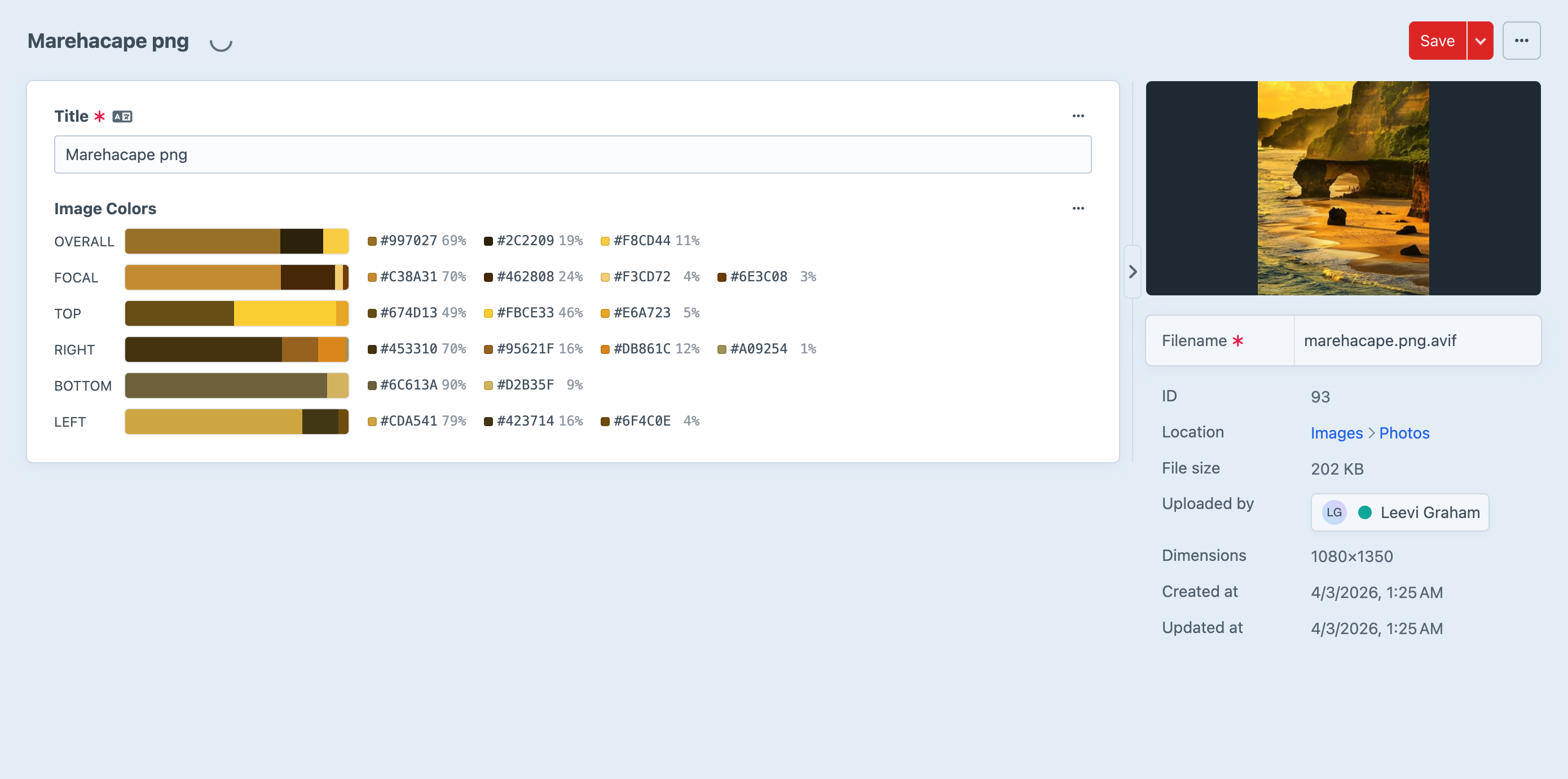
The Image Colors field is the heart of the plugin. It renders proportional color bars for each extraction region, showing you at a glance how dominant each color is. Below each bar, a legend displays the hex value and percentage for every extracted color.
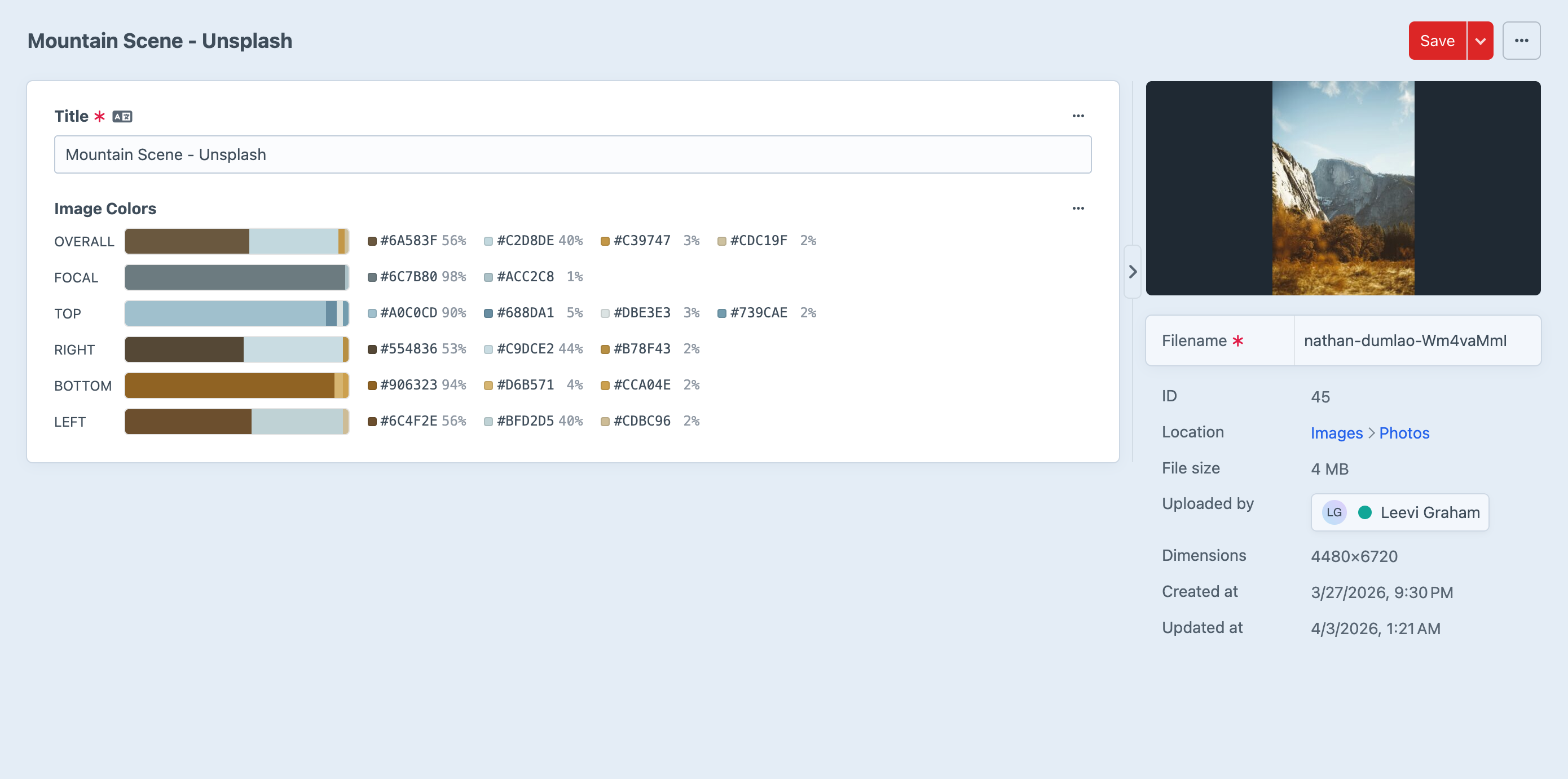
The field is read-only — colors are extracted automatically and displayed for reference. Add it to any asset volume's field layout and the plugin takes care of the rest.
Color Extraction
Every image is analysed across 6 regions, giving you precise control over which part of the image drives your design.
| Region | Description |
|---|---|
overall | The full image |
focal | A 15% region centred on the asset's focal point |
top | The top 15% strip |
right | The right 15% strip |
bottom | The bottom 15% strip |
left | The left 15% strip |
Each region produces up to 4 colors, sorted by dominance. Every color includes its weight — the proportion of pixels it represents — so you know exactly how dominant each color is.
Focal Point Awareness
The focal region follows the asset's user-defined focal point. If no focal point is set, it defaults to the centre of the image.
Change the focal point and the focal region palette updates automatically — no manual re-extraction needed.
Card and Table Previews
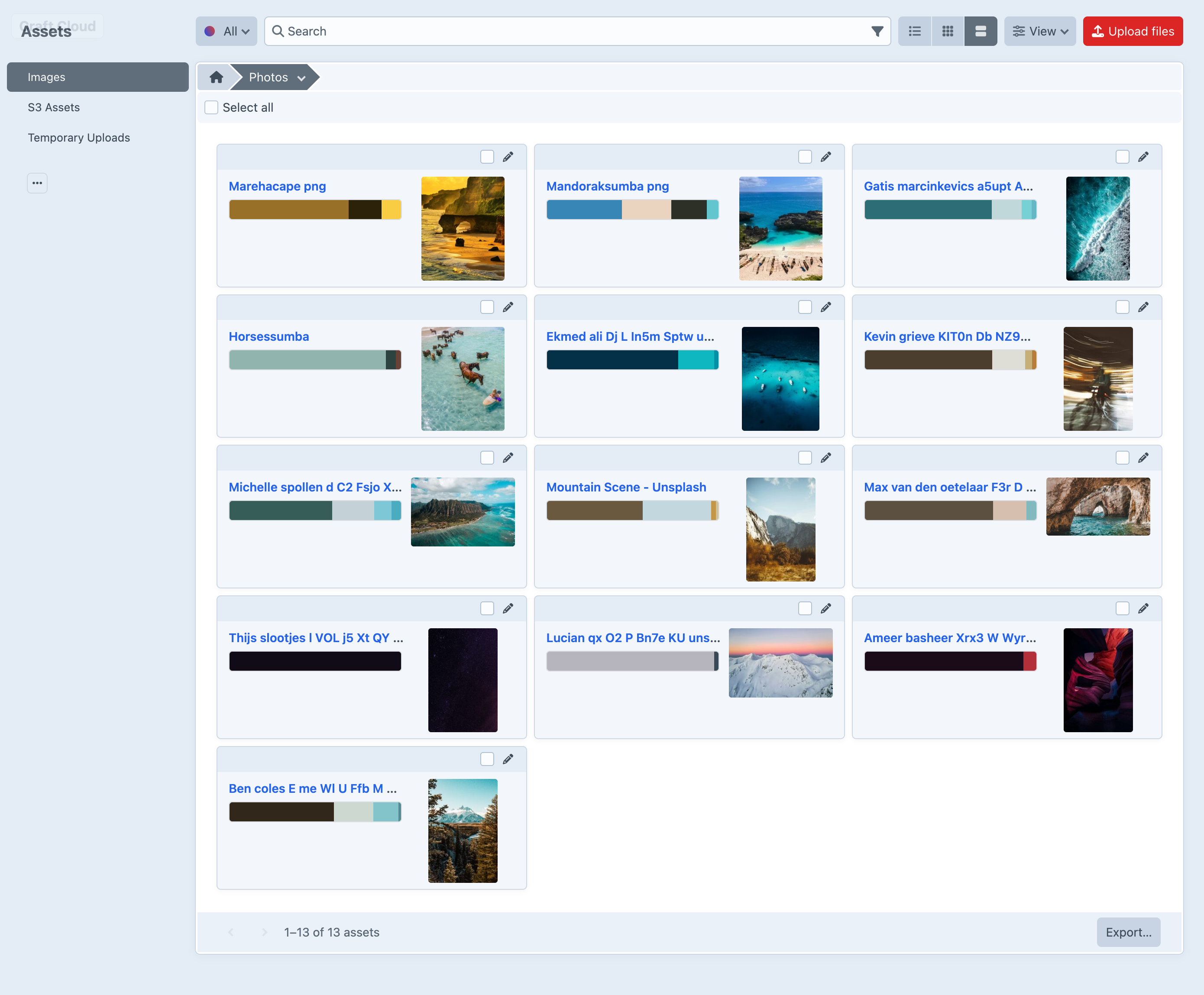
Color palettes also appear in asset index card and table views when you add the Image Colors field to your table columns or card properties. See your image colors at a glance without opening individual assets.
Click to Copy
Every color swatch in the control panel — whether on the asset edit page or in index views — supports click-to-copy. Click any swatch and the hex value is copied to your clipboard with a toast notification. Handy when you're working on front-end styles and need a quick color reference.
Weighted Colors
Unlike simple "dominant color" extractors, Image Colors gives you the full picture. Each color includes its weight as a proportion (0–1) and a rounded percentage, so you can make informed design decisions based on how much of the image each color actually represents.